How To Download All Photos From Icloud On Pc
How to Download Photos from iCloud to Windows PC
Want to transfer iCloud photos to PC but don't know how? Here in this post, nosotros summarized a few ways to help y'all transfer photos from iCloud to PC.
iCloud Transfer Tips
AnyTrans – Full-way iOS Information Manager
Costless download AnyTrans to download all photos from iCloud to PC or to your iPhone/iPad direct. You can transfer all photos, messages, contacts, music, etc. from iPhone/iPad to PC/Mac, and vice versa.
The well-nigh amazing thing about iCloud is its tight integration with all iOS devices and Mac computers. It could automatically upload content to the Apple server and sync them to all iOS devices and Mac computers, but not to PC. So, when you notice that at that place is non enough iCloud storage available yous may desire to download photos from iCloud to your PC computer in order to release more iCloud storage.
Recently, a lot of PC users emailed us, asking how do I transfer photos from iCloud to PC. Here in this post, we summarized several ways that could aid you transfer photos to PC both from My Photo Stream and iCloud Photo Library.
The Differences Between iCloud Photo Library and My Photo Stream
The start thing we may want to clarify is the differences between the iCloud Photograph Library and my photo stream. Withal, when speaking of these ii items. a lot of users become confused. Photos from My Photo Stream and iCloud Photograph Library are all can exist chosen iCloud photos.
- My Photograph Stream only syncs thou maximum photos of the contempo 30 days to all your iOS devices and Mac computers.
- iCloud Photograph Library, however, uploads all photos to iCloud and keeps them up to appointment beyond devices.
To determine which way to go, you can go to Settings on your iDevice, click on the iCloud, select Photos and curl downwards to check if iCloud Photo Library or My Photo Stream is enabled. If iCloud Photo Library is enabled, and then yous can transfer photos from the iCloud Photo Library to the PC. If My Photo Stream is enabled, you lot can transfer photos from My Photograph Stream to PC.
Since now you have known which kind of photo you can transfer to PC, please choose ane fashion below to brand information technology.
Transfer Photos From iCloud Photograph Library to PC via iCloud Control Panel
1. Download iCloud Command Console to your PC > Log in to your iCloud business relationship >Then click on Options next to Photos.
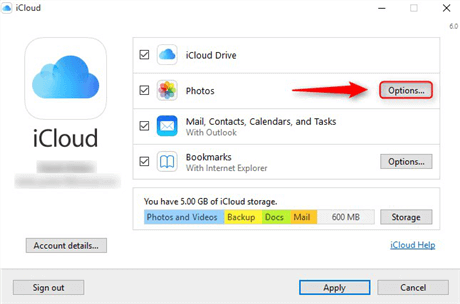
Download iCloud Control Panel and Click on Options
2. Select iCloud Photo Library and click Done >Then the iCloud Photo Library is enabled on your PC, which ways you can access your iCloud photos on your PC.
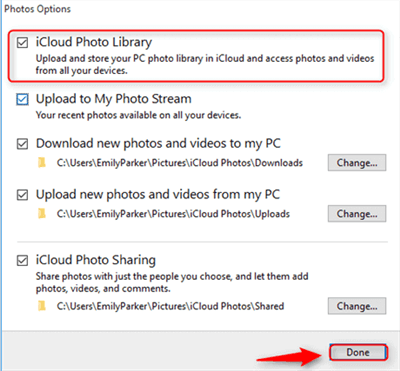
Transfer Photos from My Photo Stream to PC via iCloud Control Panel
3. Once the iCloud Photo Library is enabled, a binder named iCloud Photos will exist created > Click on Download, then yous can select photos to download to your PC.
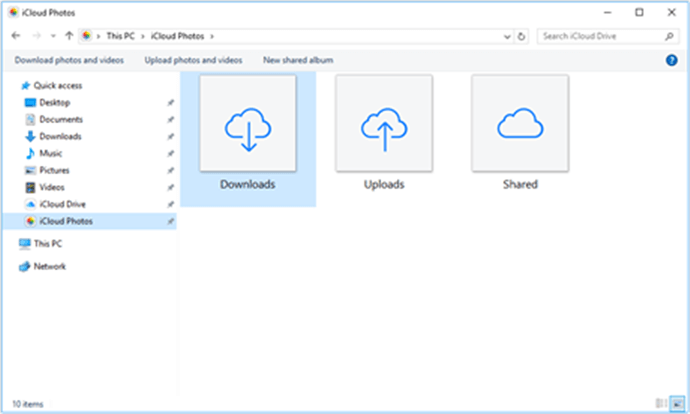
Select Photos to Download to Your PC
Transfer Photos From iCloud Photograph Library to PC via iCloud.com
You can also direct download iCloud photos from the website, here are the detailed steps of transferring photos from iCloud to PC with iCloud.com:
- Go to iCloud.com, log in to your iCloud account.
- Click on the Photos.
- Select the photos you want to download, click the Download tab on the upper right.

Download iCloud Photos to PC via iCloud.com
After end downloading, you can bank check the downloaded photos on your PC.
How to Download all Photos from iCloud via AnyTrans
How to download more than m photos from iCloud? Hither, we'd like to introduce an easier way for y'all to transfer iCloud photos. AnyTrans is specialized in managing iCloud content. It allows you to selectively transfer iCloud content to the computer without data loss and it is piece of cake to transfer iCloud photos to a PC. It too allows y'all to become photos from iCloud to iPhone directly.
As well, it could aid you view, edit, and delete iCloud content in an easy way. What'due south more, it supports transferring iCloud content to another iCloud account straight.
AnyTrans – Professional person iOS Managing director
- Directly download and sync photos from iCloud to iPhone.
- Download all photos (more than than 1000) from iCloud in an easier way.
- Not erase existing photos and will be kept in original quality.
- Work well with all iPhone models, iPhone 13/iOS 15/Windows ten.
Now, let's encounter how to download photos from iCloud to PC with original date and quality via AnyTrans.
Step ane. Download AnyTrans and launch it on PC > Click on iCloud Director tab > Sign in to your iCloud account (Apple ID).
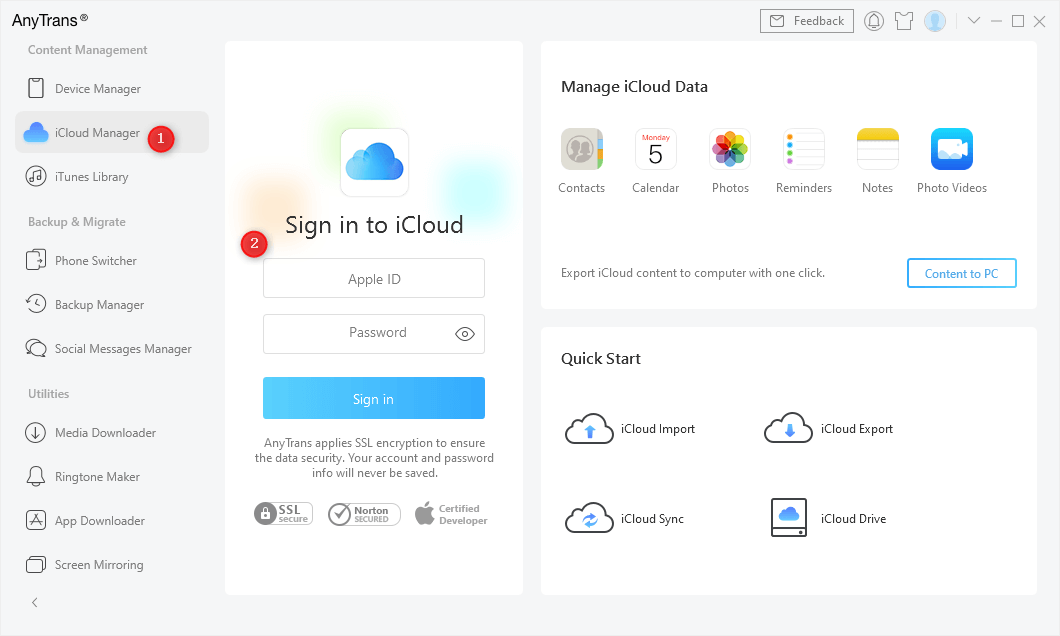
Choose iCloud Director and Log In
Step ii. Click on Photos on the category page to manage content.
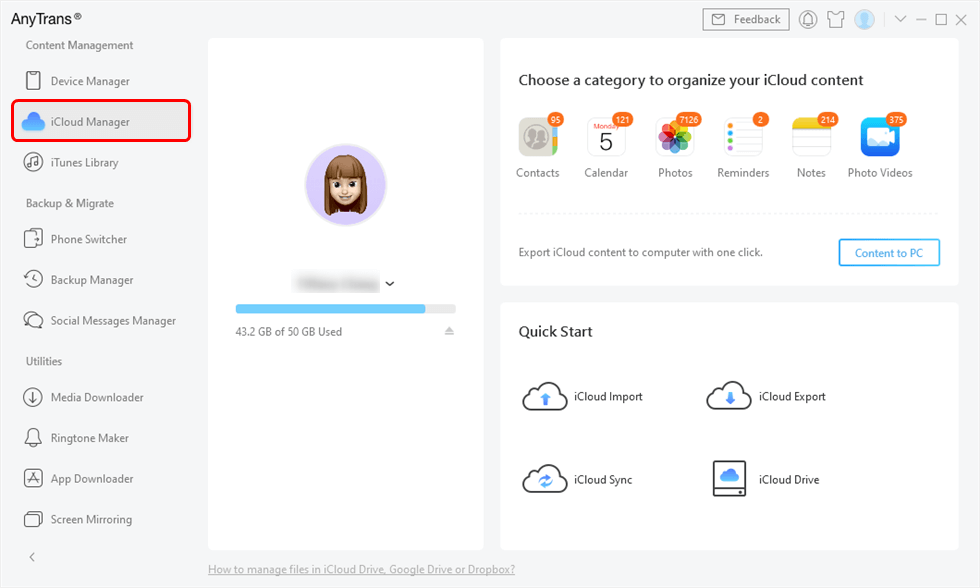
Manage your iCloud Content
Step 3. Select photos you want to transfer so click the Download tab to download photos from iCloud to your calculator.

Select Photos and Click Download Push
Transfer Photos From My Photograph Stream to PC via iCloud Command Panel
This method is actually quite similar to the method of transferring photos from iCloud Photo Library to PC. The main difference is, enabling My Photo Stream instead of iCloud Photo Library.
- Download the iCloud Control Panel and log in to your iCloud account.
- Click the Options next to Photos, and then bank check the box of Upload to My Photo Stream.
- After My Photo Stream is enabled, a folder named iCloud Photos will be created. My Photo Stream will automatically download any new photos that you take on iOS devices to the Downloads binder merely like the first method.
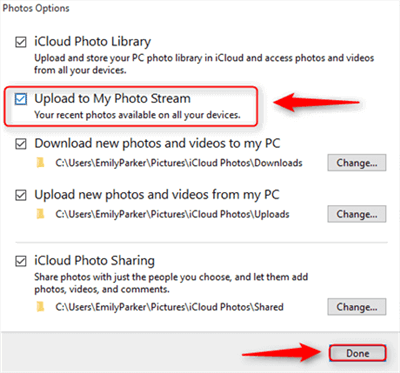
Upload to My Photo Stream
Transfer Photos From My Photo Stream to PC via AnyTrans
Besides photos in the iCloud Photograph Library, AnyTrans also enables users to transfer photos in My Photo Stream. Follow the steps beneath to come across how to download photos from My Photo Stream via AnyTrans.
Step 1. Download AnyTrans and get-go information technology on your reckoner > Connect your iDevice to computer with USB cable > Choose Device Director manner > Click on Photos option as the screenshot shows.
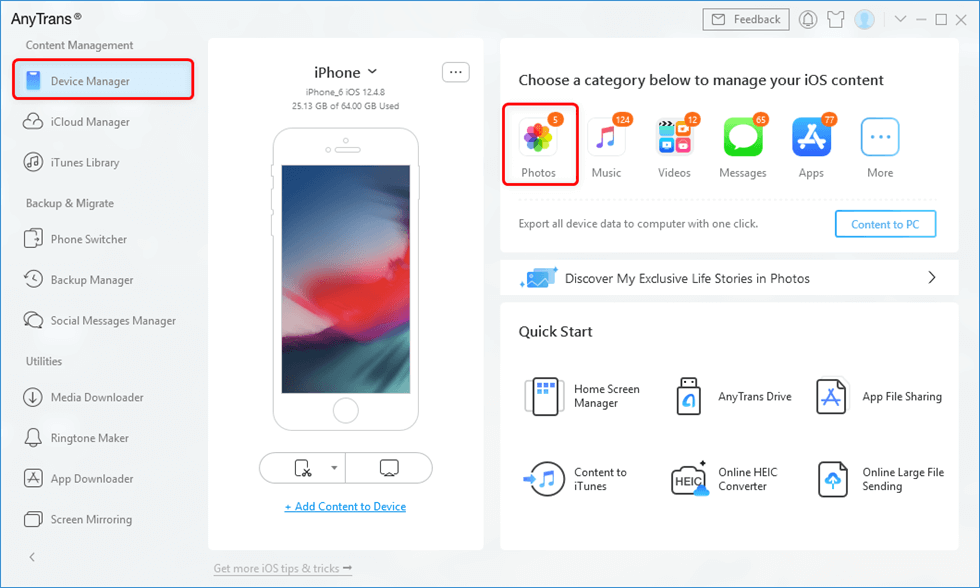
Get to Device Manager and Click Photos
Step 2. Click on Photos and then select My Photograph Stream at the left panel.
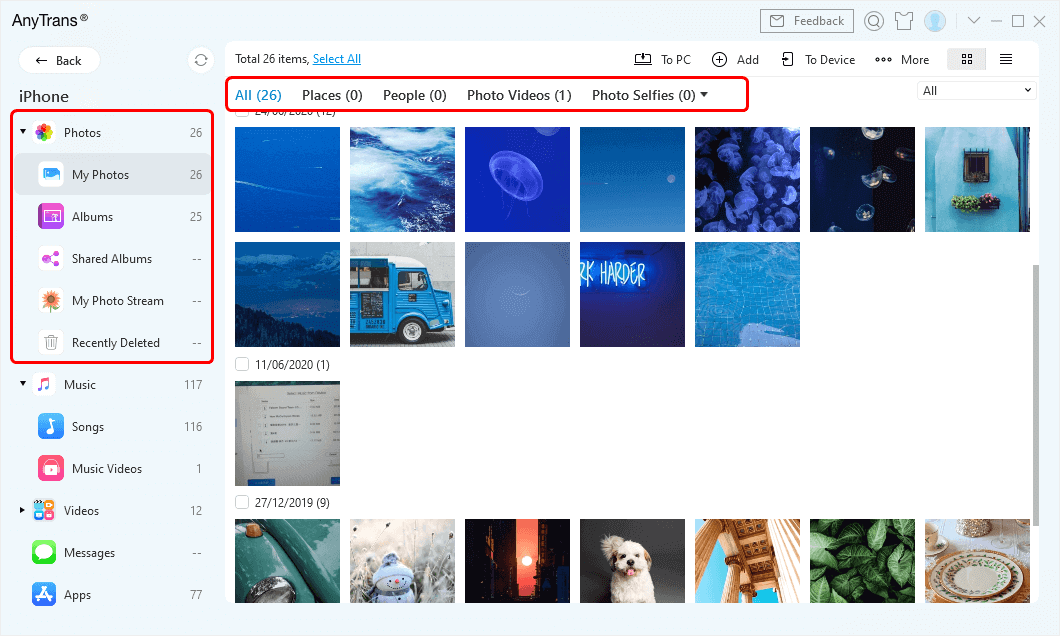
View Albums with AnyTrans
Footstep 3. Select the photos you prefer > Click on the To PC push button at the tiptop side to transfer multiple photos to your PC.
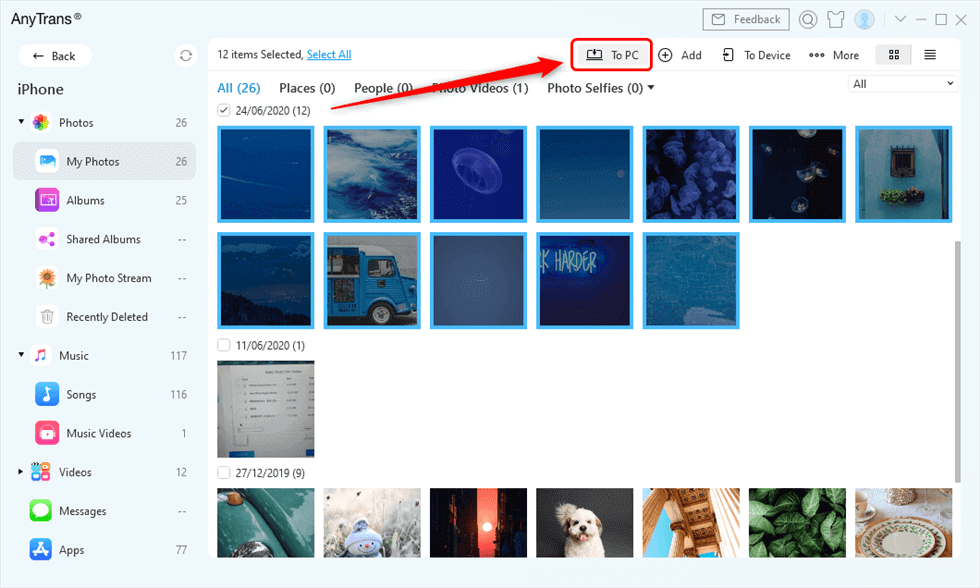
Select Photos and Ship to PC
The Bottom Line
Here are five ways of transferring iCloud photos to PC, hope these v ways could solve your problem. If you lot accept whatsoever bug with this article, delight don't hesitate to let us know by email or leaving comments below. Final merely not least, AnyTrans can likewise do well in managing data on your iDevices and iTunes.

DOWNLOAD HERE
Posted by: millercluat1946.blogspot.com


0 Comments